1. Start with the right site
Open the workspace overview and confirm the selected project, connector health, and most recent sync before interpreting a signal.
See the workspace overview →
Start at the workspace overview, check the connected site and its latest data, then ask Agent JOLLEY about a completed Site Audit and the mobile and desktop PageSpeed results. Follow the citations, review any proposed fix, and approve it only when you are ready.
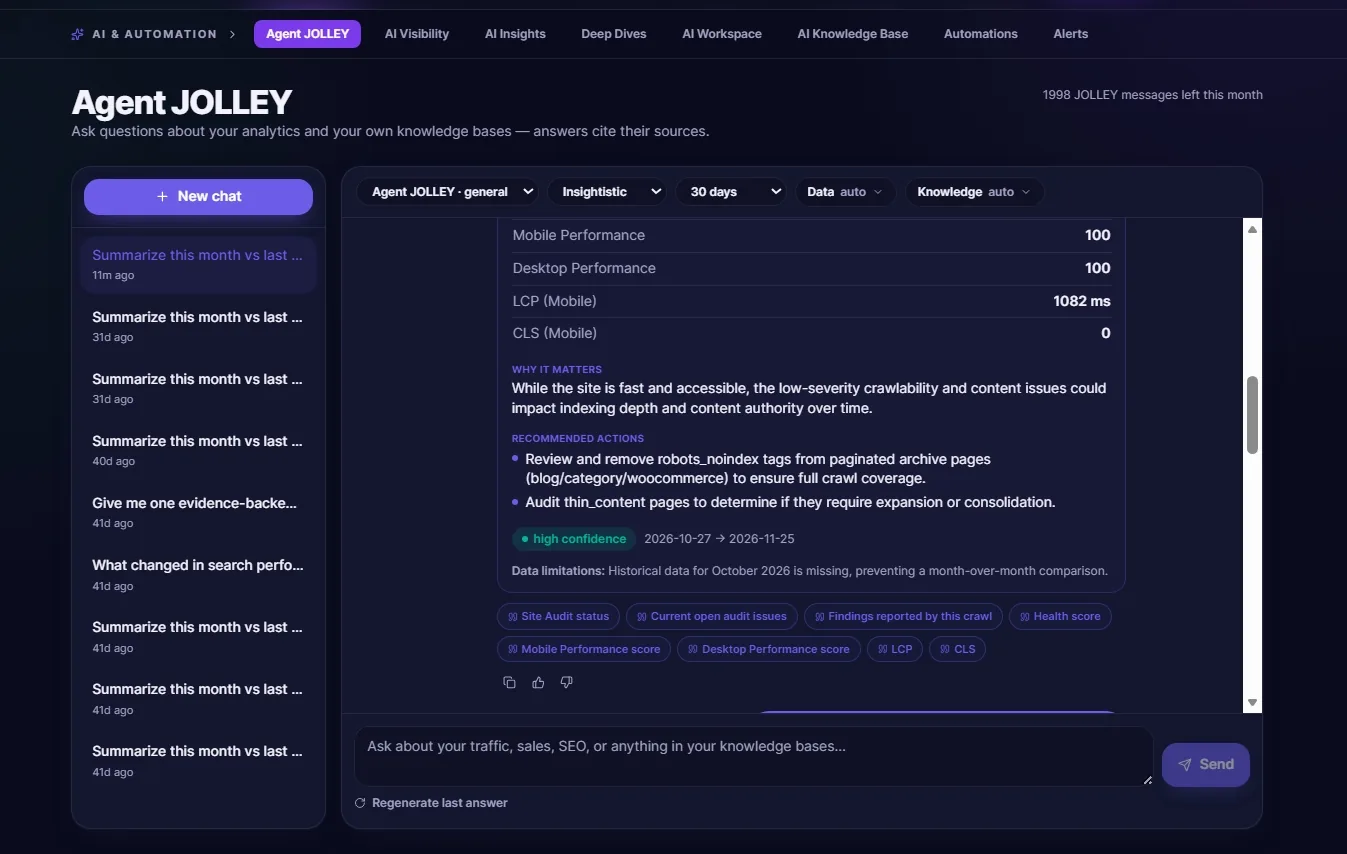
V3 connects JOLLEY to evidence in your workspace. It can explain a finding, draft a supported fix, wait for your approval, then show a receipt after an approved action. Your review stays in the loop at every step.
Open the workspace overview and confirm the selected project, connector health, and most recent sync before interpreting a signal.
See the workspace overview →Open Site Health and confirm the relevant connection and sync. In analytics tools, choose comparable dates and account for gaps or partial history.
Check Site Health →For a site issue, ask one focused question about a completed Site Audit and both PageSpeed device results. State the project and what you need to verify.
Open the JOLLEY workspace →Follow the linked audit finding and PageSpeed measurements. Check the affected URL, device, test date, units, and any data limits shown in the answer.
Review Site Audit →JOLLEY can draft a supported action. Read its scope and expected change, then approve or decline; an answer alone does not change your site.
See the action workflow →After approval, review JOLLEY’s change receipt. Re-run the relevant audit or PageSpeed check to confirm what changed, then record or schedule follow-up.
See audit changes →Review the completed Site Audit and the mobile and desktop PageSpeed results for this project. Identify the highest-priority finding, cite the supporting measurements, explain what they do and do not establish, and draft a fix for my review. Do not apply it until I approve.
This is a prompt example, not a promised result. JOLLEY’s answer and available actions depend on the connected site, completed data, permissions, and plan.
Use the real V3 screens below to follow the path from workspace overview to source evidence, monitored changes, supported actions, and client reporting. Open a screenshot for a larger view. Some integrations and tools depend on your connection and license tier.
 Open full screen ↗
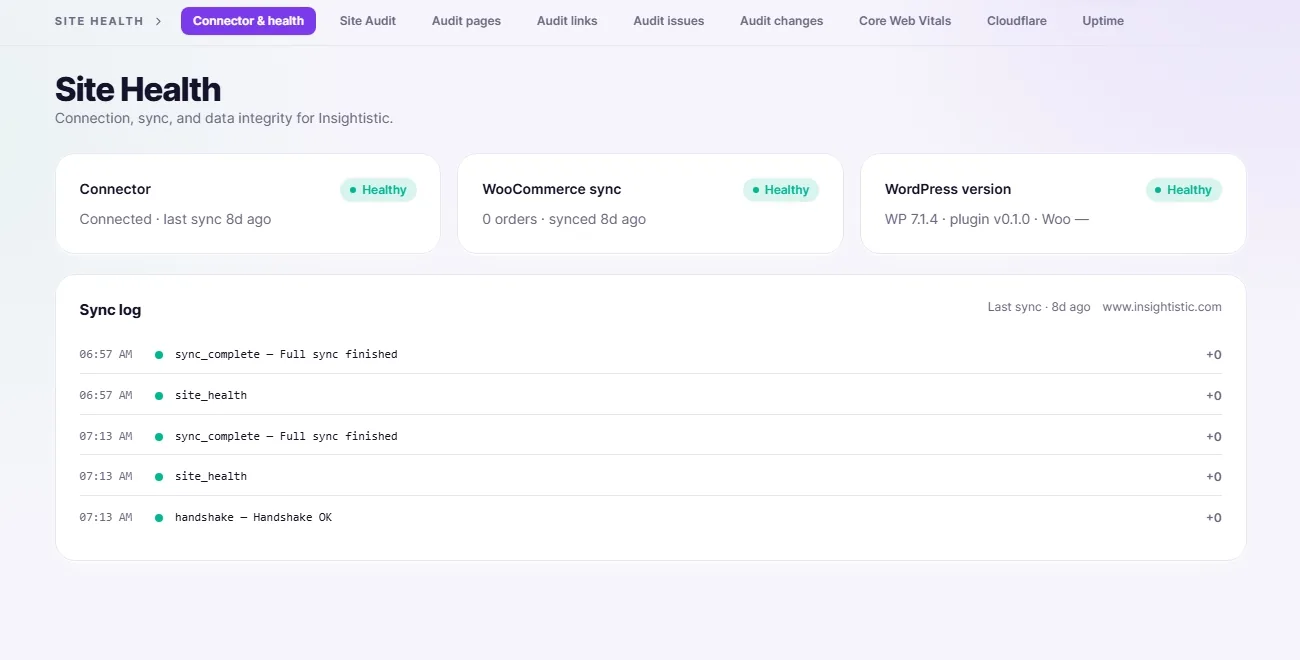
Check connector status, sync history, uptime and SSL monitoring before interpreting a change.
 Open full screen ↗
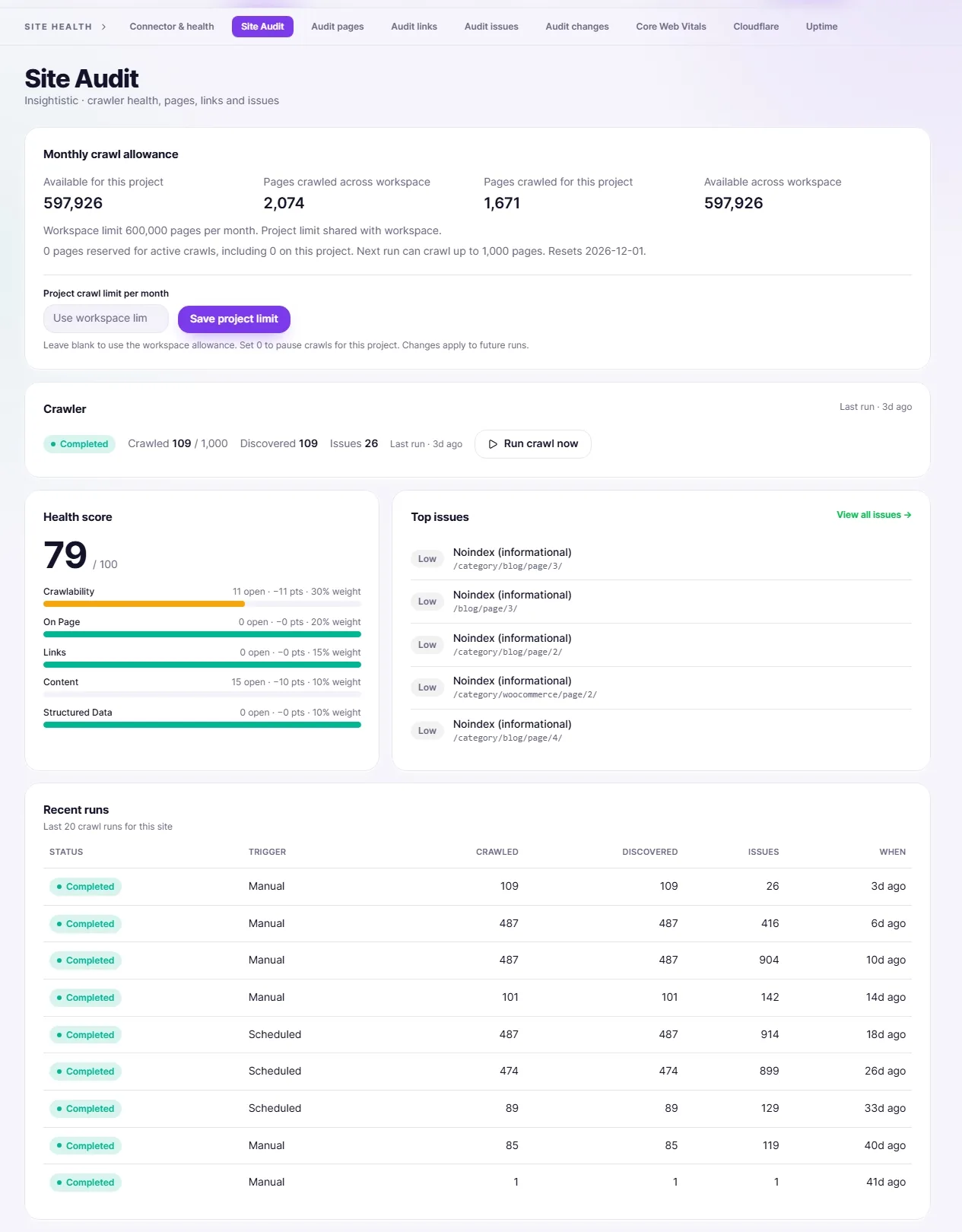
Review crawl status, on-page findings, broken links and prioritized issues. Each run has a URL cap within the workspace allowance.
 Open full screen ↗
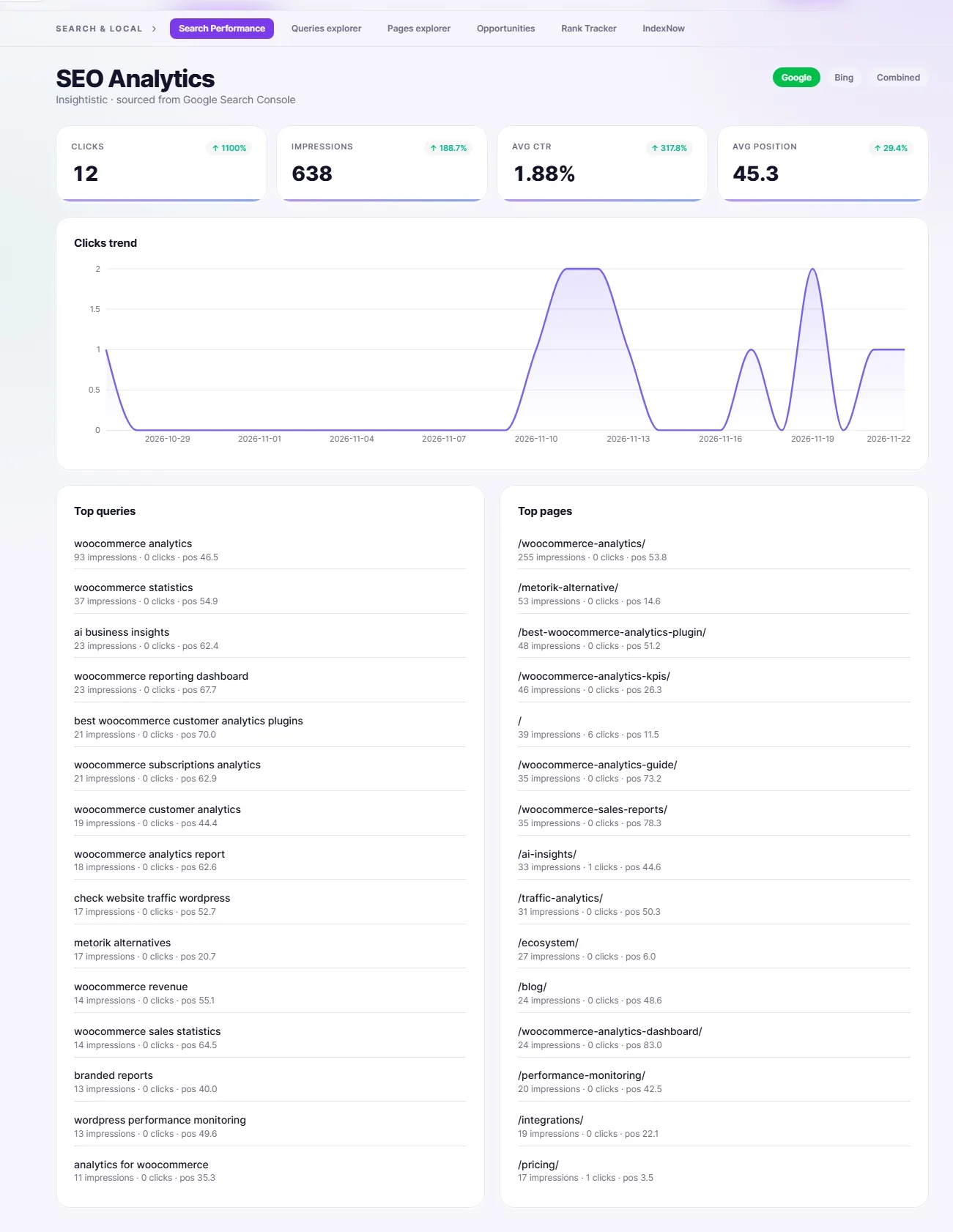
Compare connected Google and Bing search data, then inspect query and page details behind a trend.
 Open full screen ↗
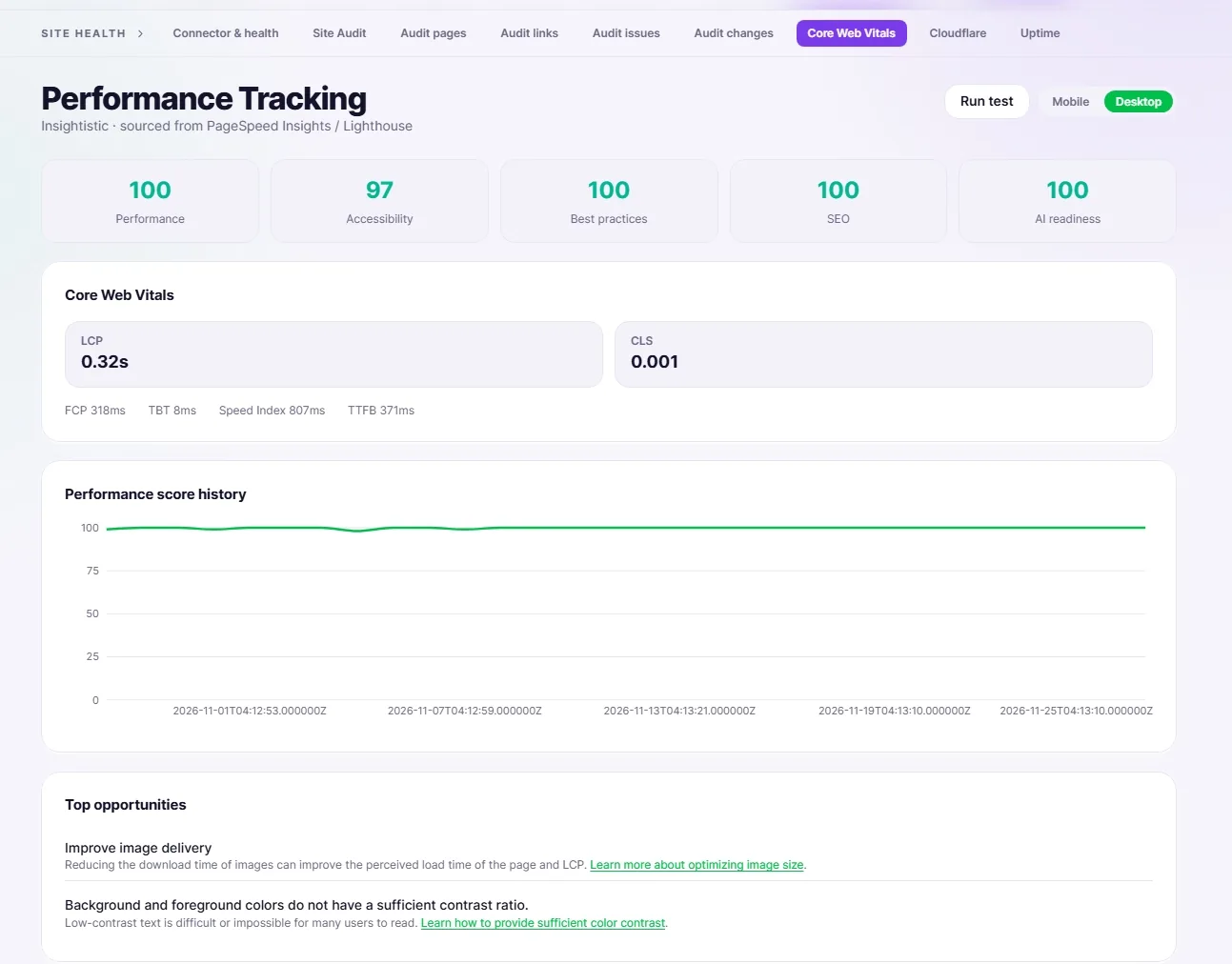
Run PageSpeed tests and review device results, available Core Web Vitals and linked opportunities.
 Open full screen ↗
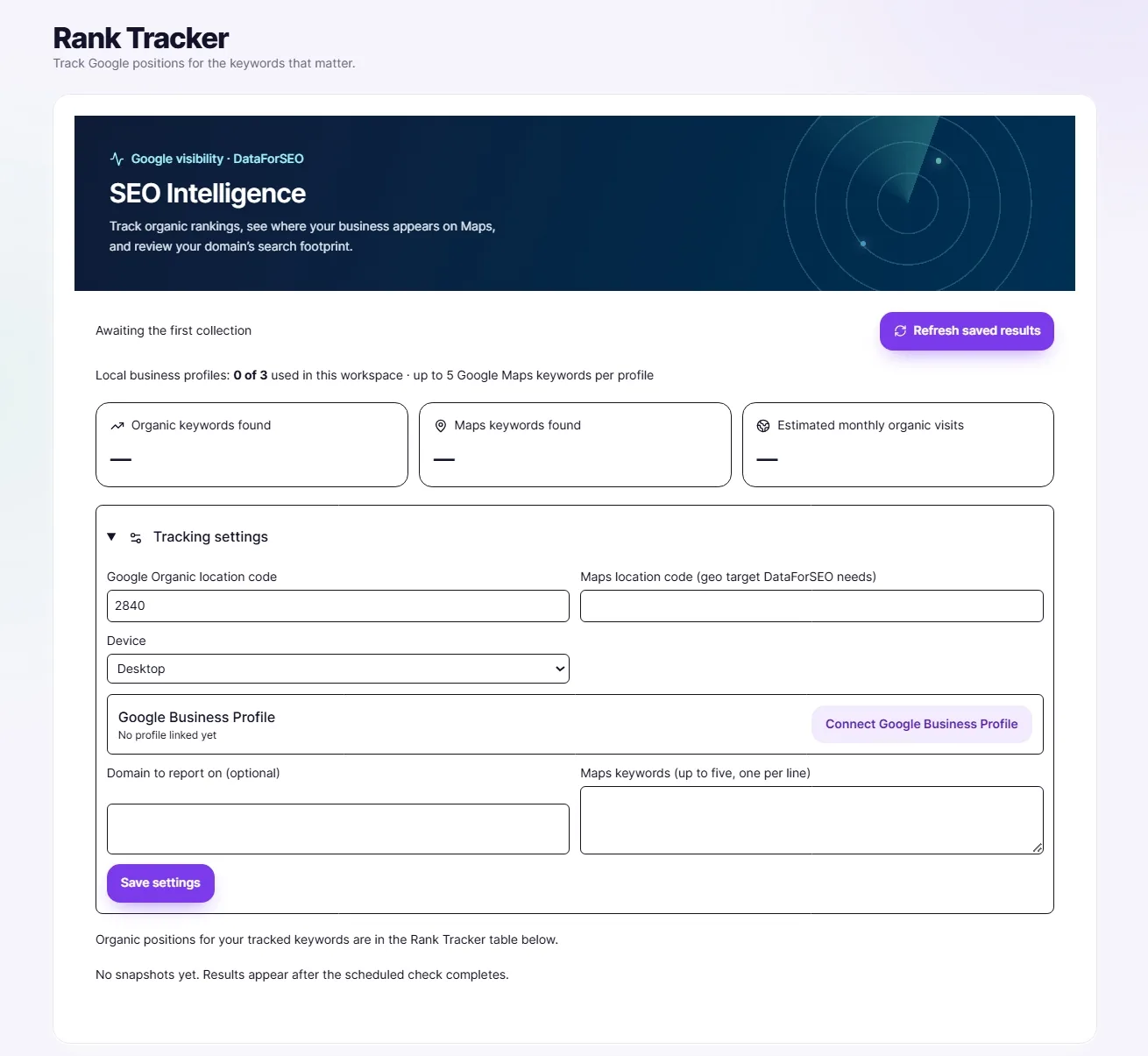
Configure Google organic and local Maps keyword tracking. Keyword slots and check depth depend on your tier; see the current AppSumo listing for the live allowance.
 Open full screen ↗
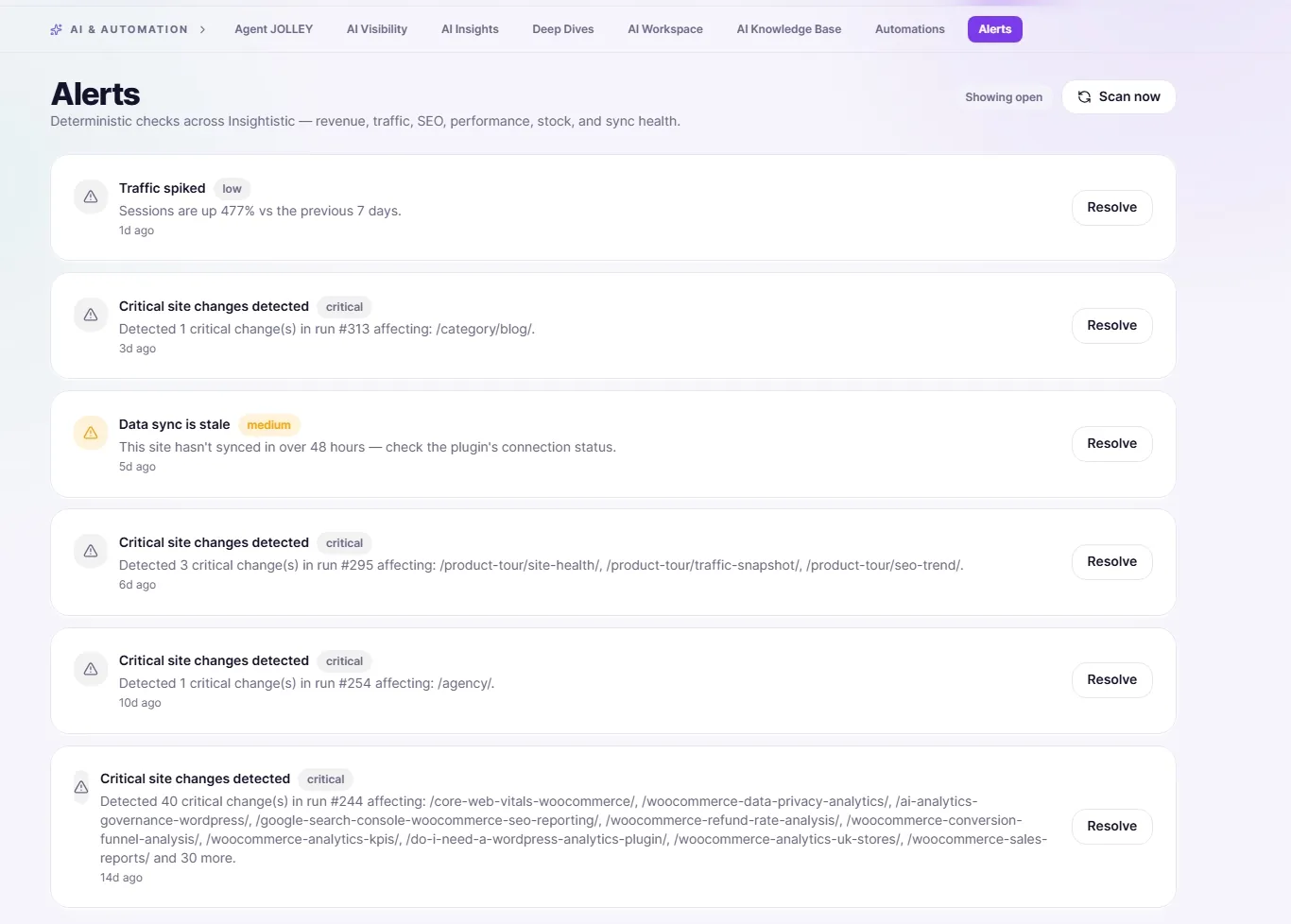
Review deterministic checks for changes in traffic, SEO, performance, stock and sync health.
 Open full screen ↗
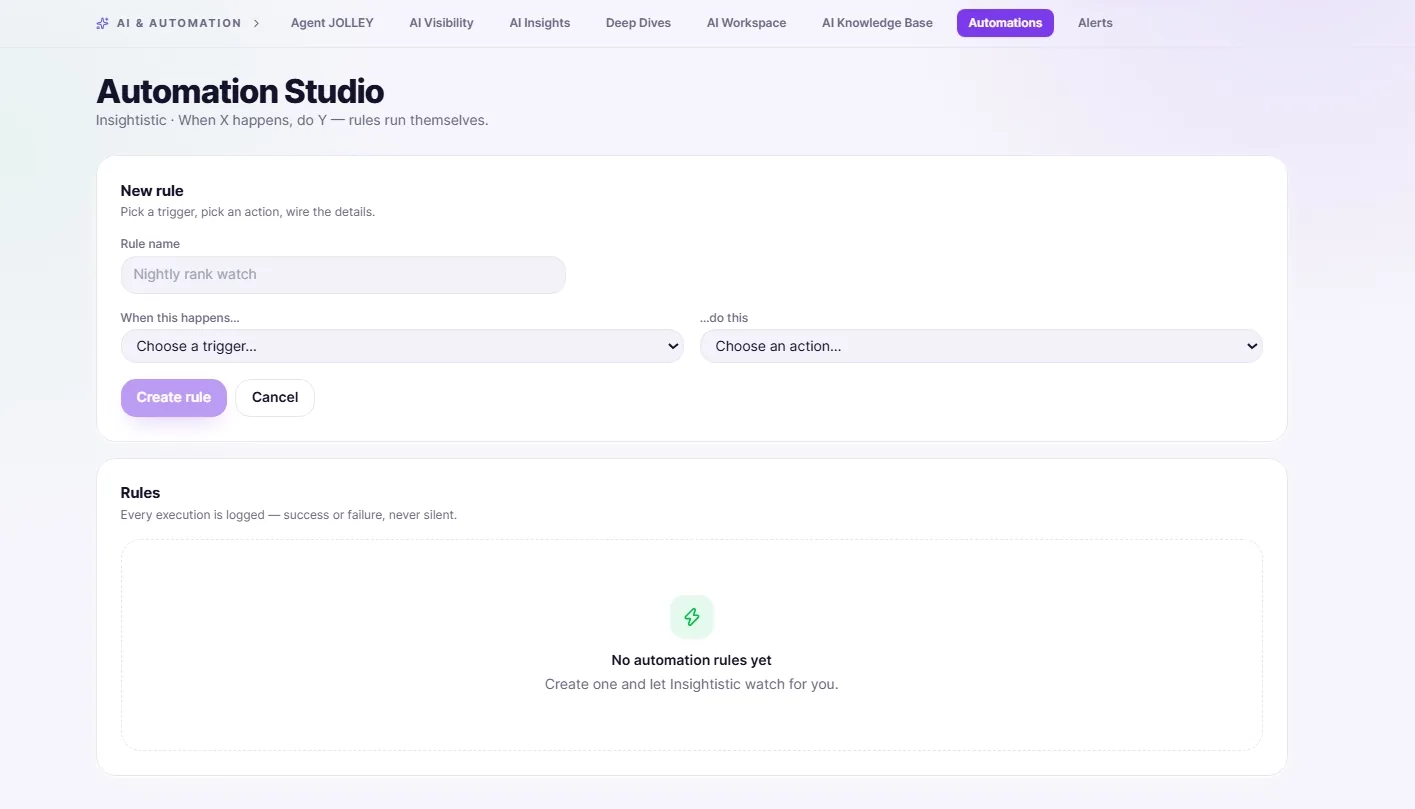
Pair a supported trigger with an action, then check execution history. Custom workflow access starts at Tier 2.
AppSumo Tier 2+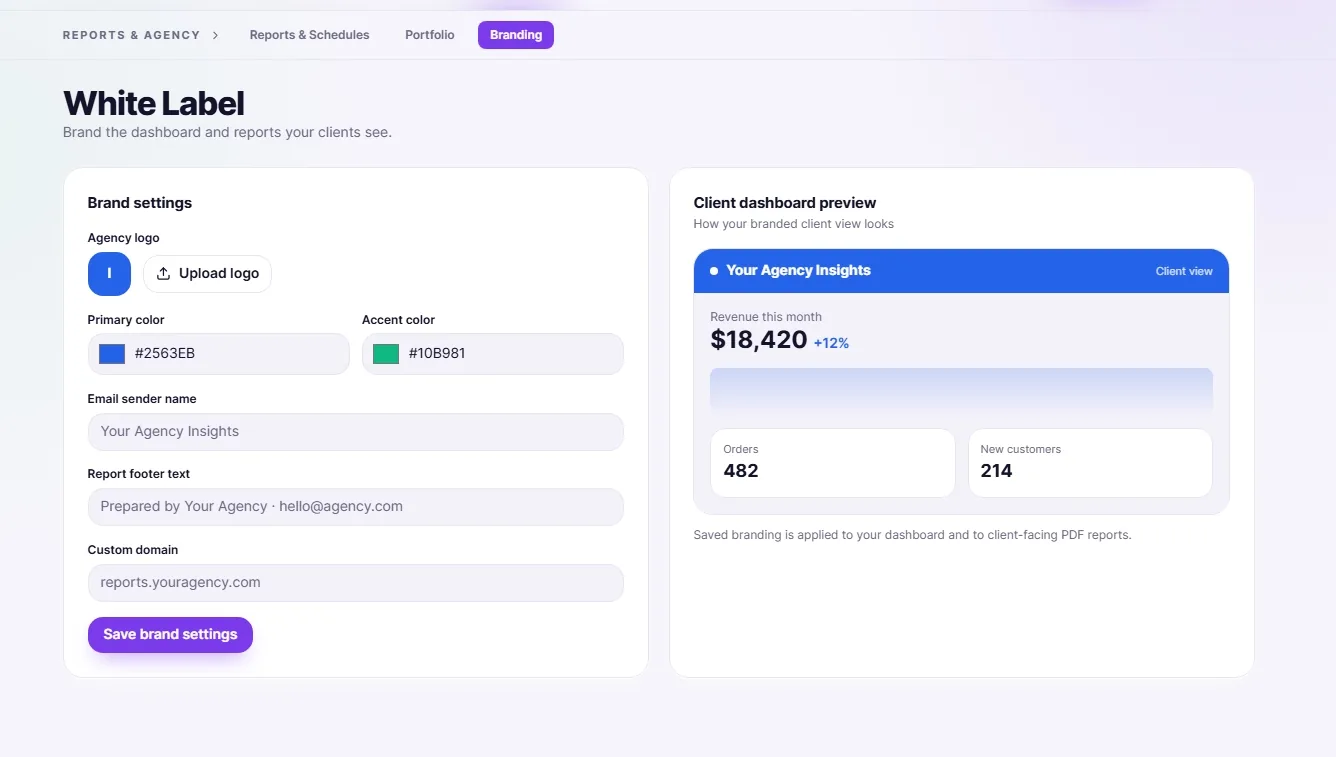 Open full screen ↗
Download PDF or HTML reports. White-label reports, priority support and Executive insights are listed for Tiers 4–5. Check AppSumo for current entitlements.
AppSumo Tiers 4–5Begin with the workspace brief and the data context JOLLEY can use. AI visibility tracks whether selected prompts mention or cite your brand; competitor insights are available from Tier 3.
 Open full screen ↗
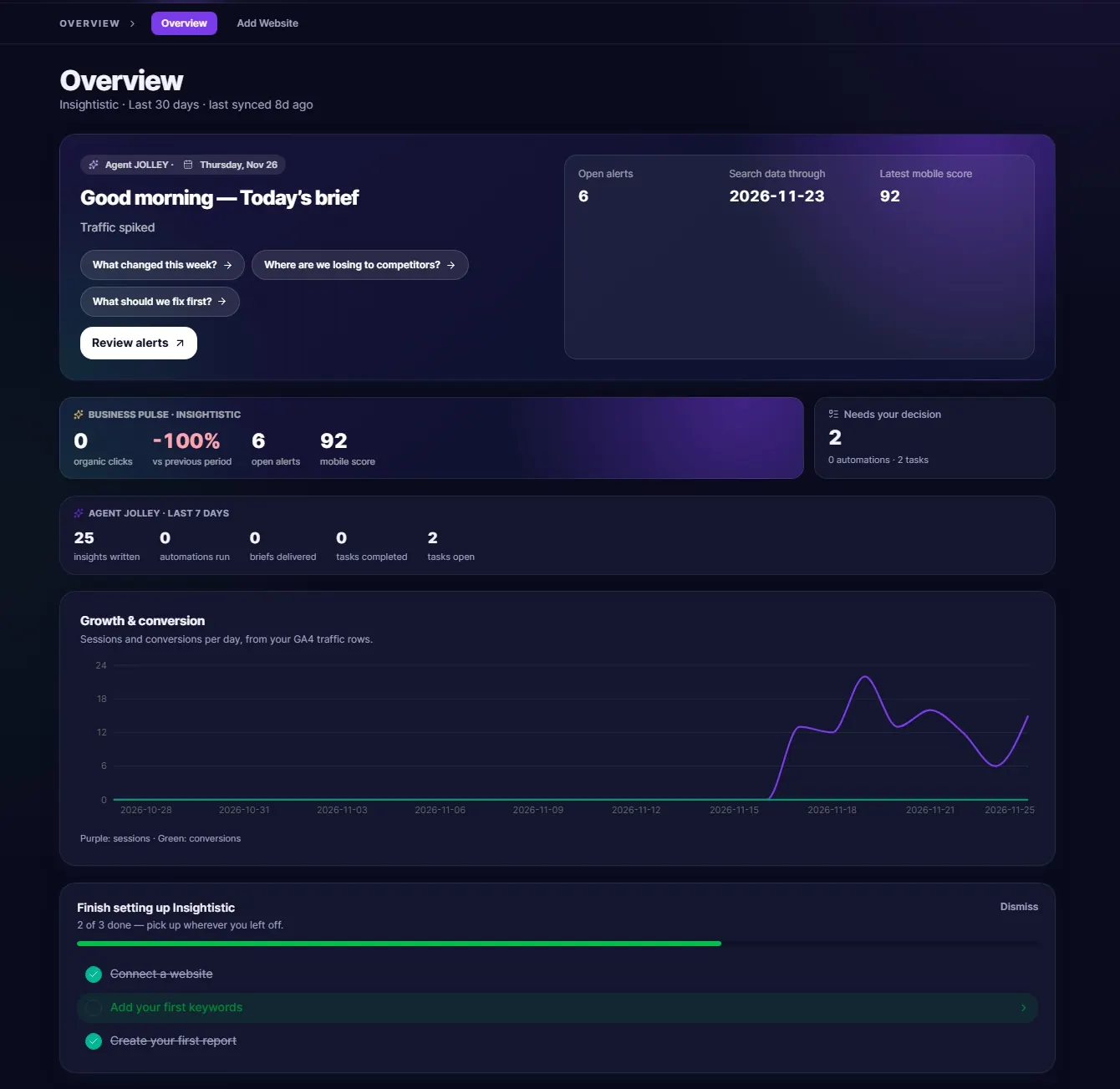
Scan the JOLLEY brief and top-level signals for search, site health, AI answer visibility, and uptime. Open the related module before drawing conclusions.
 Open full screen ↗
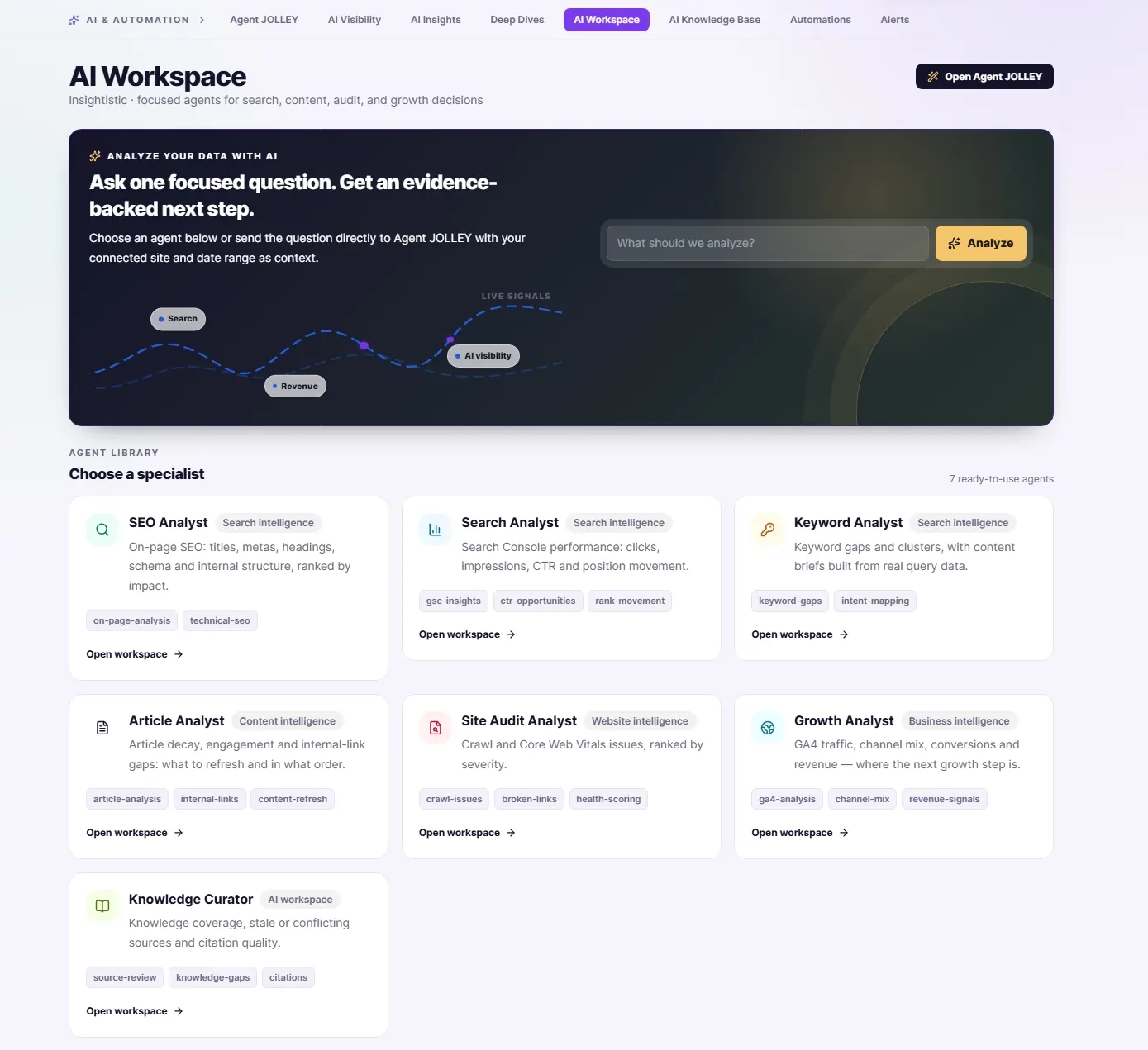
Ask a focused question, review the cited evidence, and inspect a proposed action. JOLLEY waits for your approval before carrying out a supported change.
 Open full screen ↗
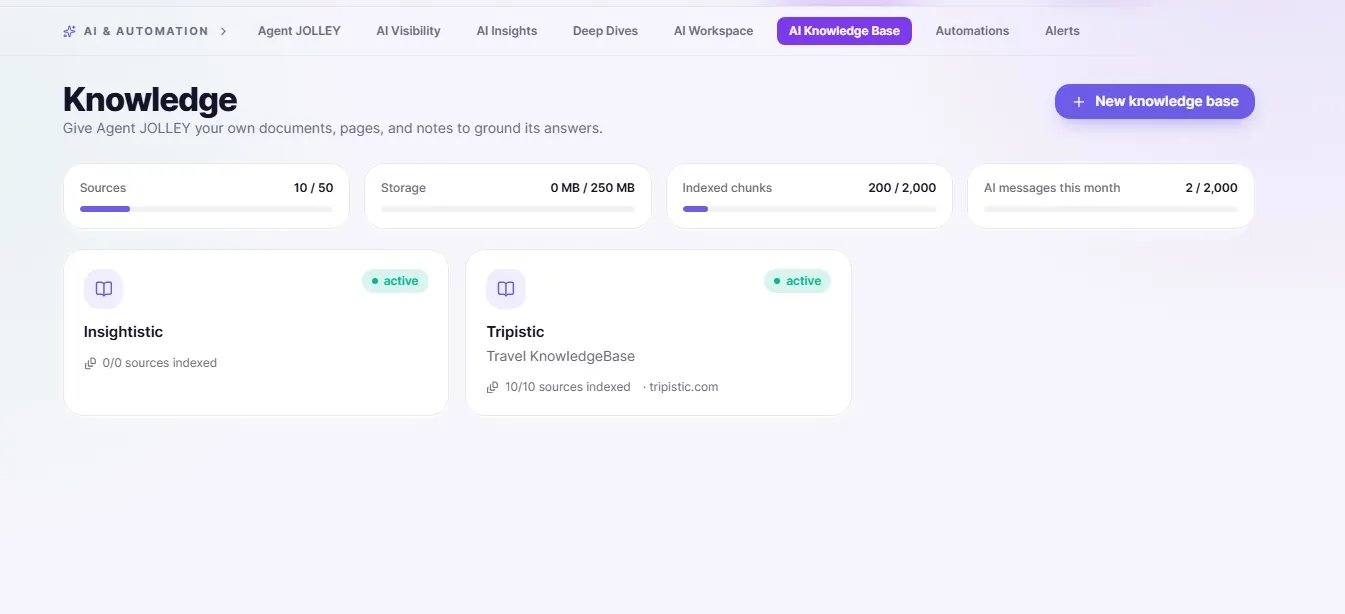
Add eligible documents, pages, and notes so JOLLEY can use your own references and cite the relevant source. Knowledge-base allowances vary by tier.
 Open full screen ↗
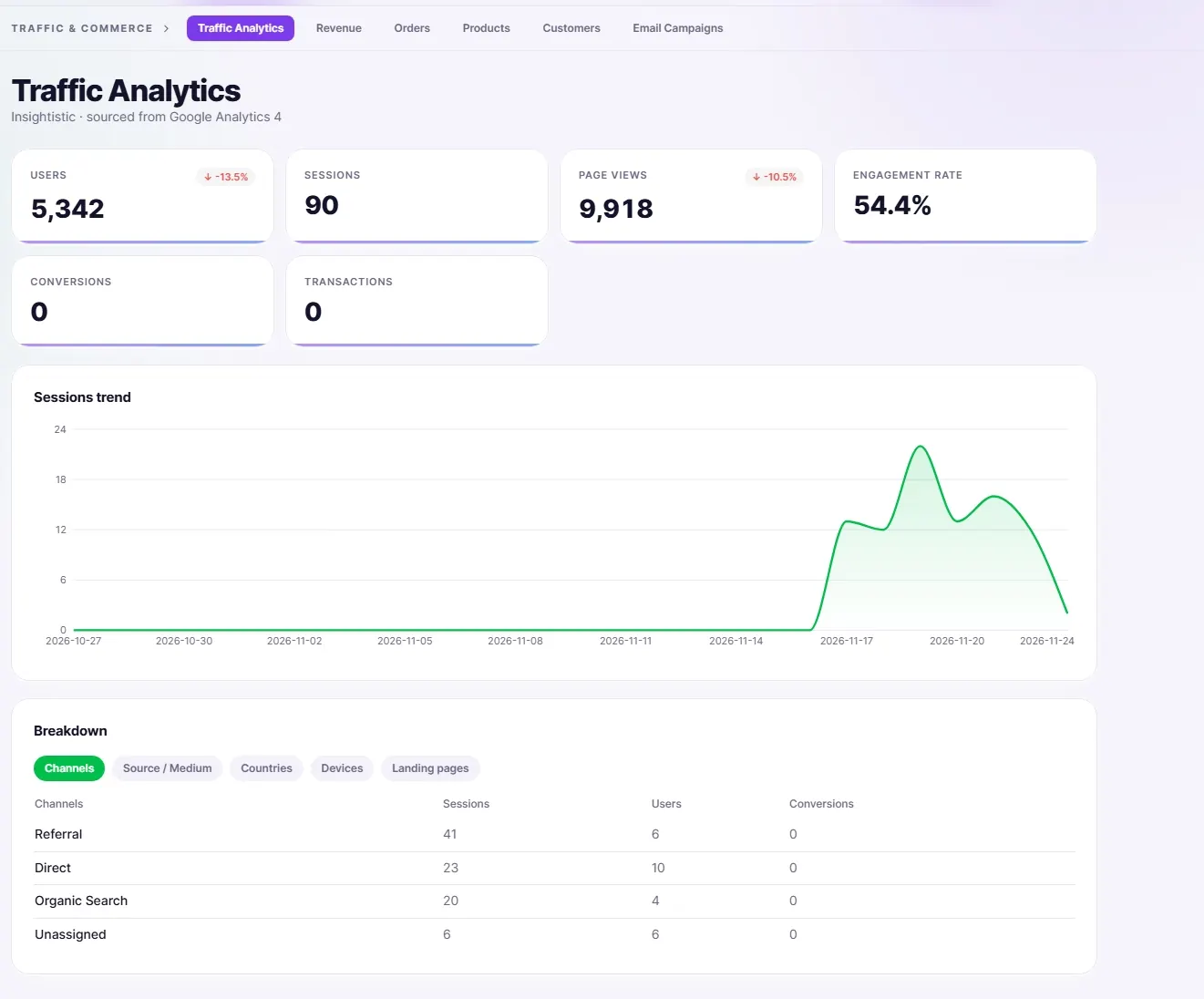
Review sessions, users, page views, engagement, and channel breakdowns from a connected GA4 property. Use the relevant source and period when cross-checking an answer.
Site Audit separates the crawl into pages, links, issues, and changes. Move from an agent summary to the exact URL or finding.
 Open full screen ↗
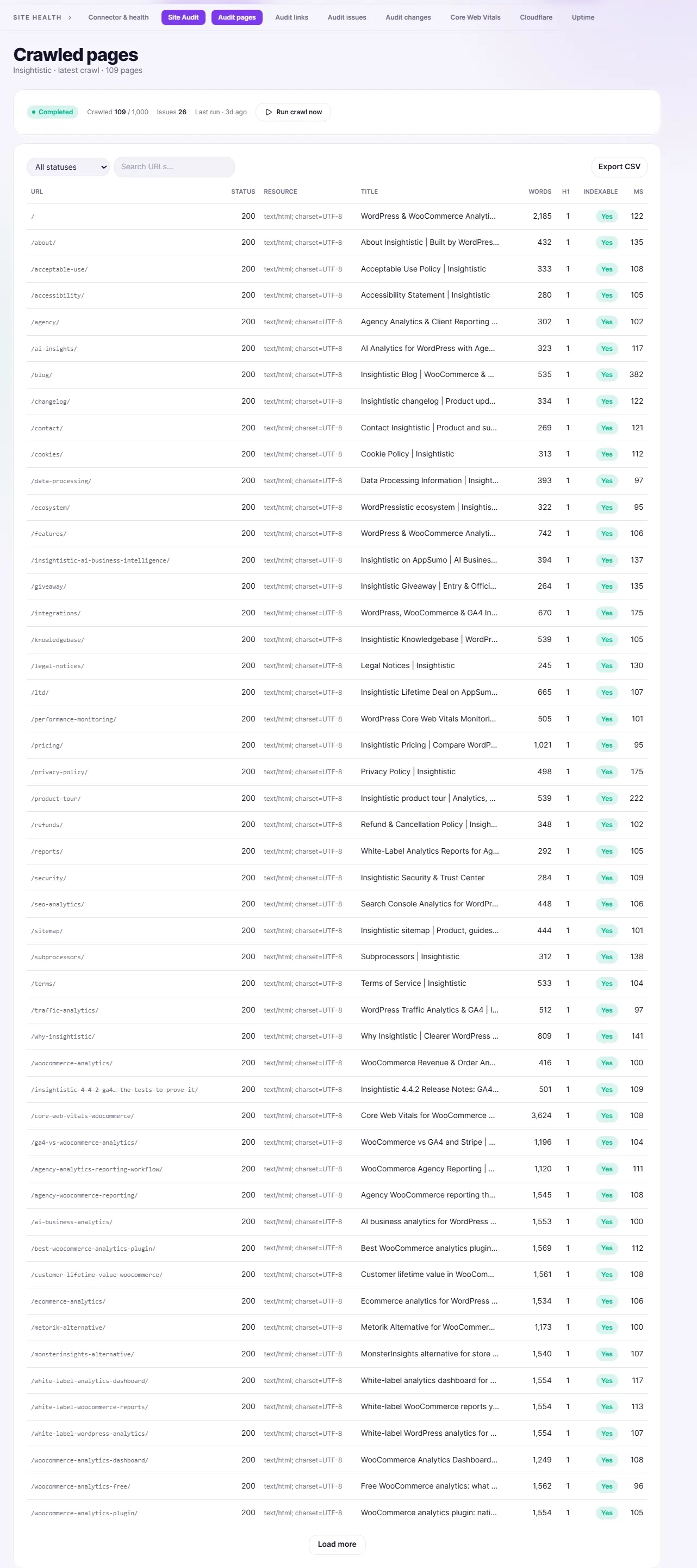
Check which URLs were processed and their crawl status. Compare project and shared workspace usage with the limits on your license.
 Open full screen ↗
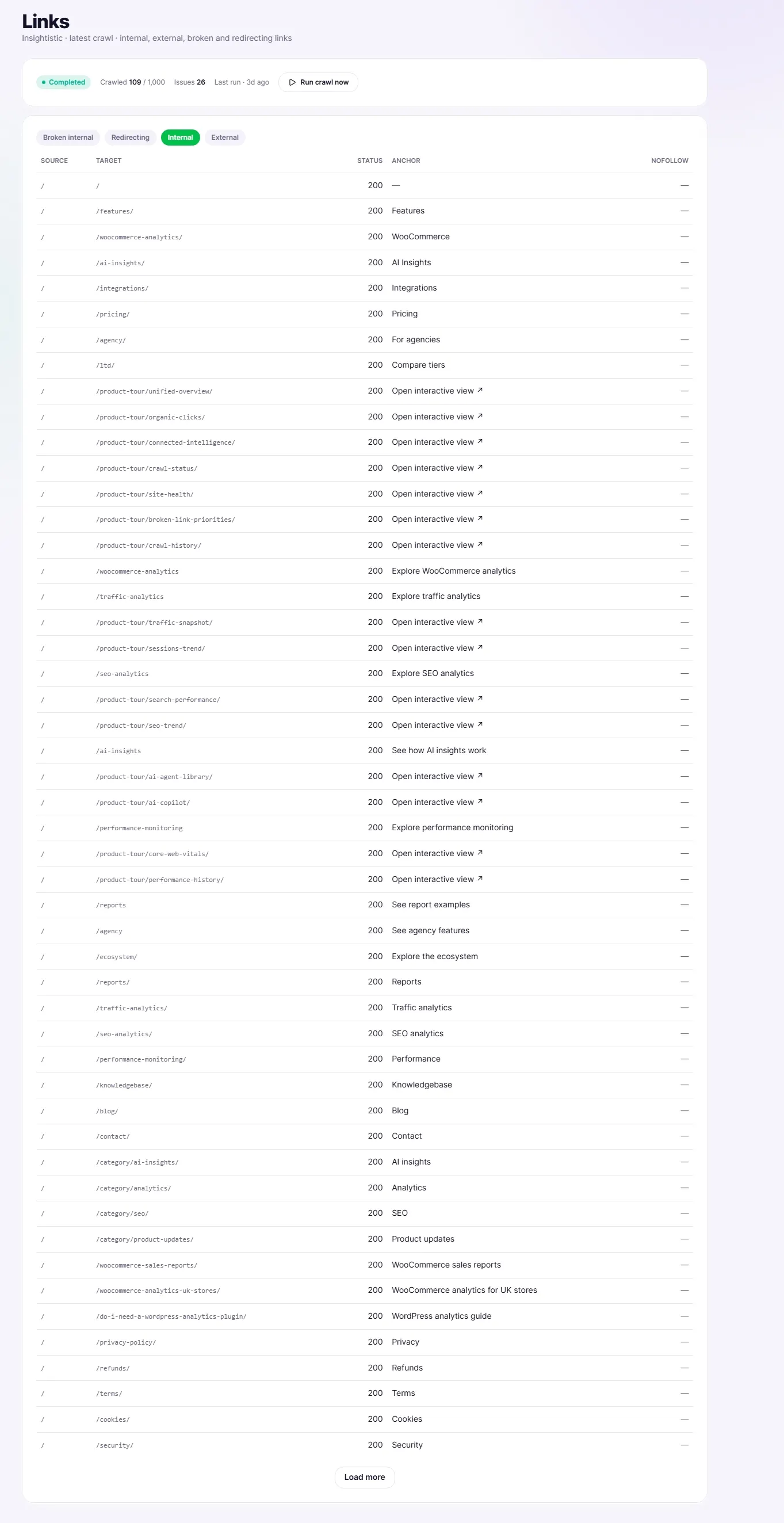
Review internal, external, broken, and redirecting links from the latest completed crawl. Open the affected URL before choosing a fix.
 Open full screen ↗
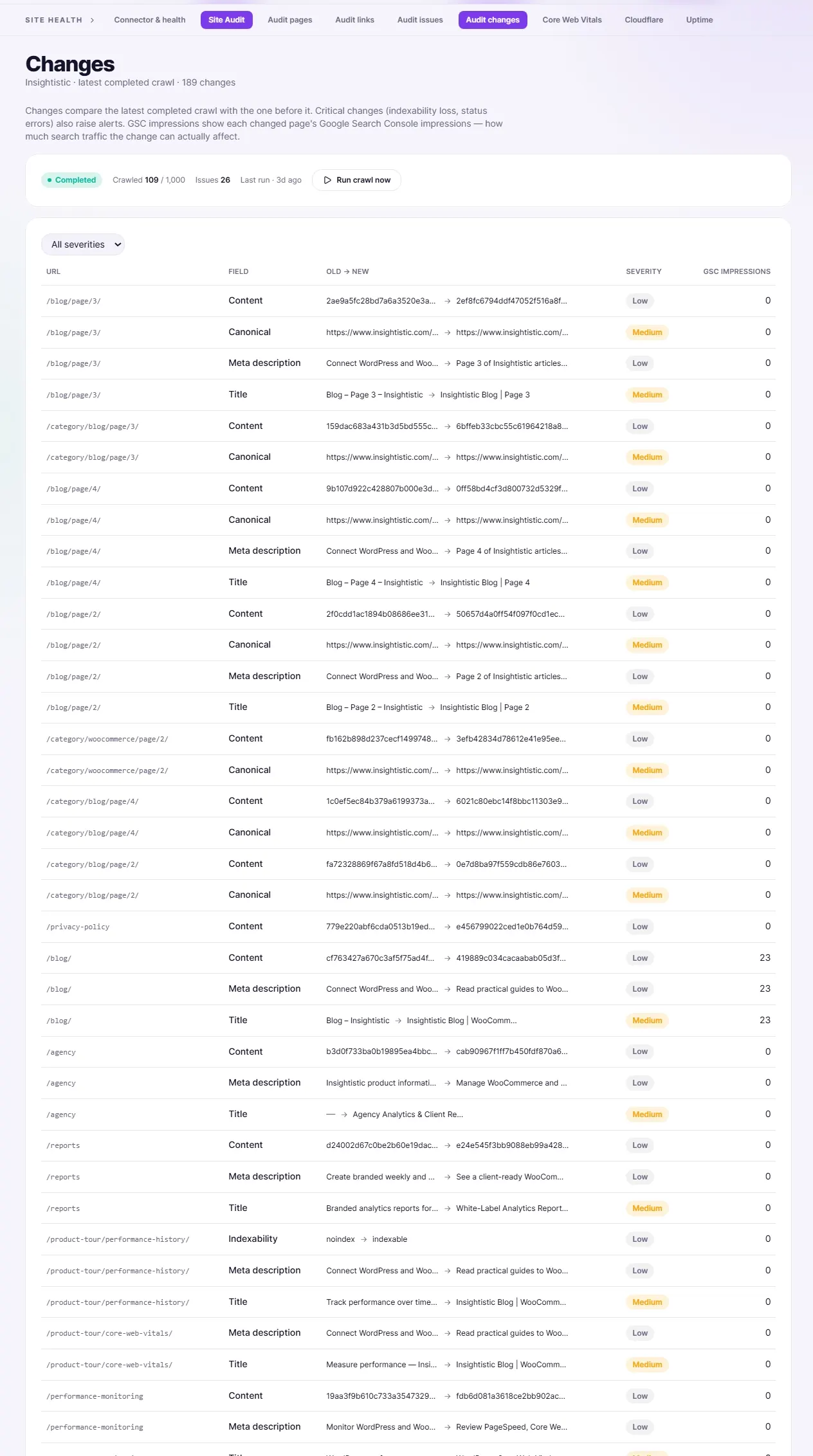
Compare the latest crawl with the previous completed crawl. Review resolved and newly detected findings after an approved change.
 Open full screen ↗
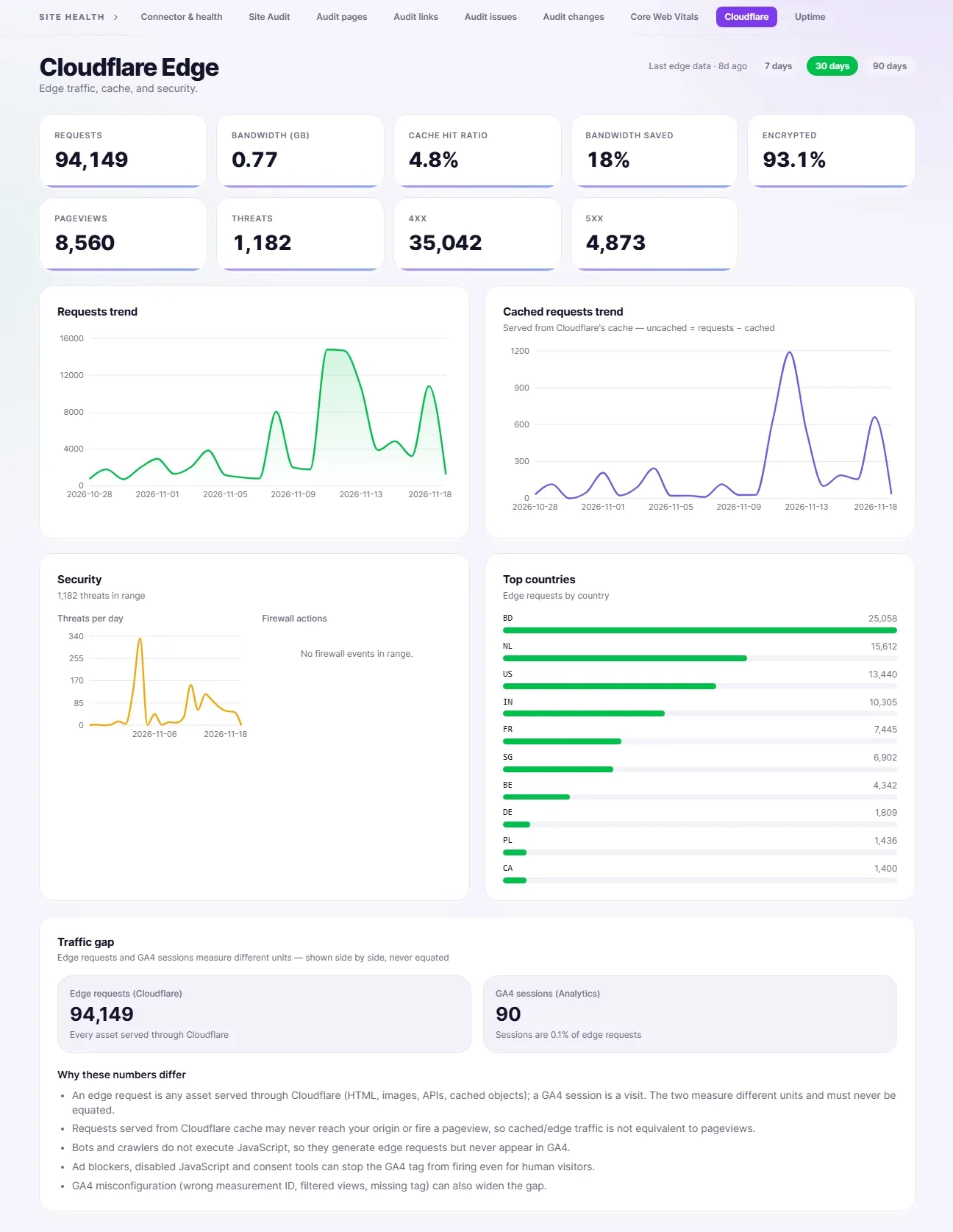
When Cloudflare is connected and enabled, inspect edge traffic, cached requests, and related trends alongside site performance signals.
 Open full screen ↗
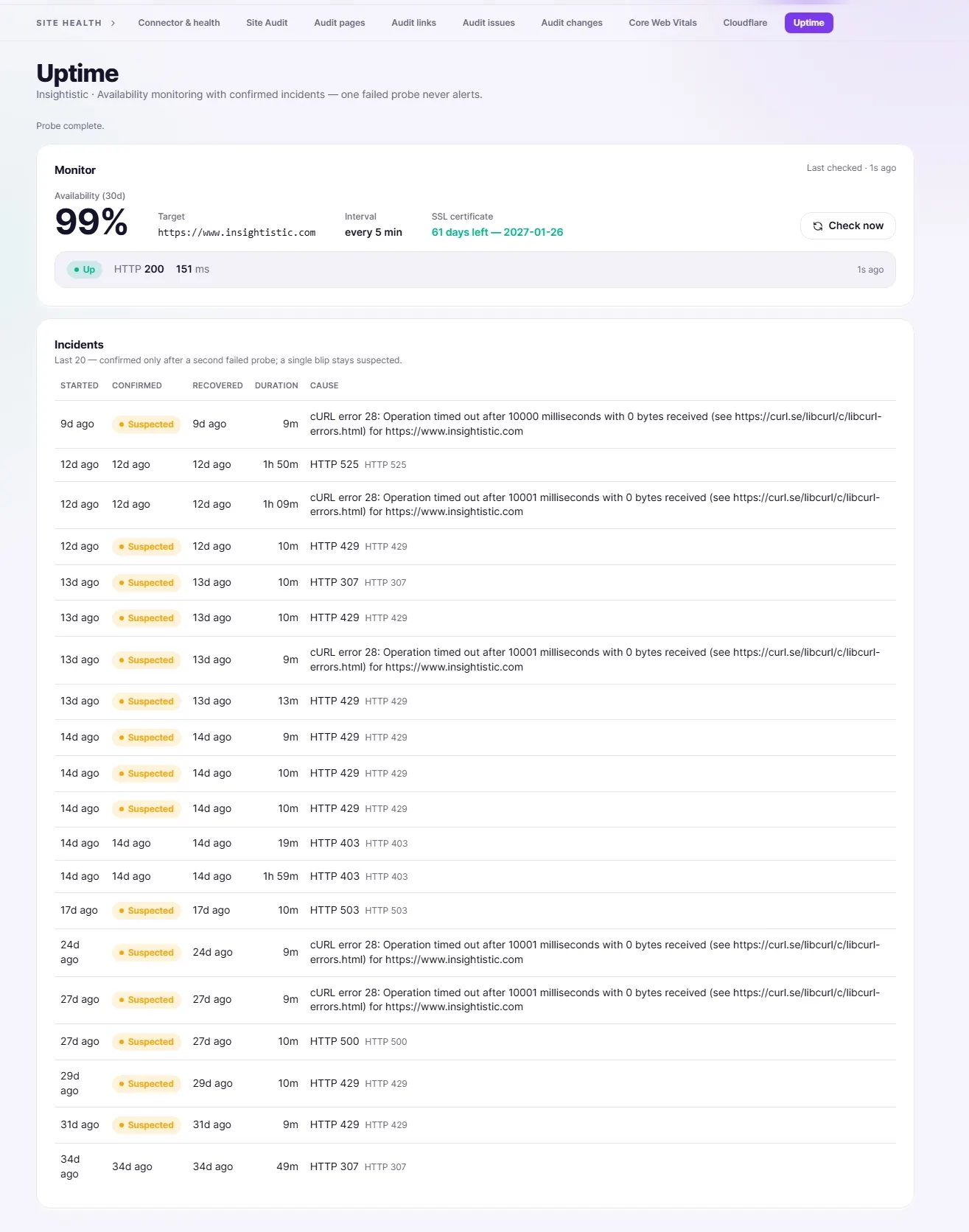
Review configured uptime probes, confirmed incidents, and certificate expiry. Monitoring depends on site setup and the current license allowance.
Use connected channels and agency views to share the result with the people who need to review it.
 Open full screen ↗
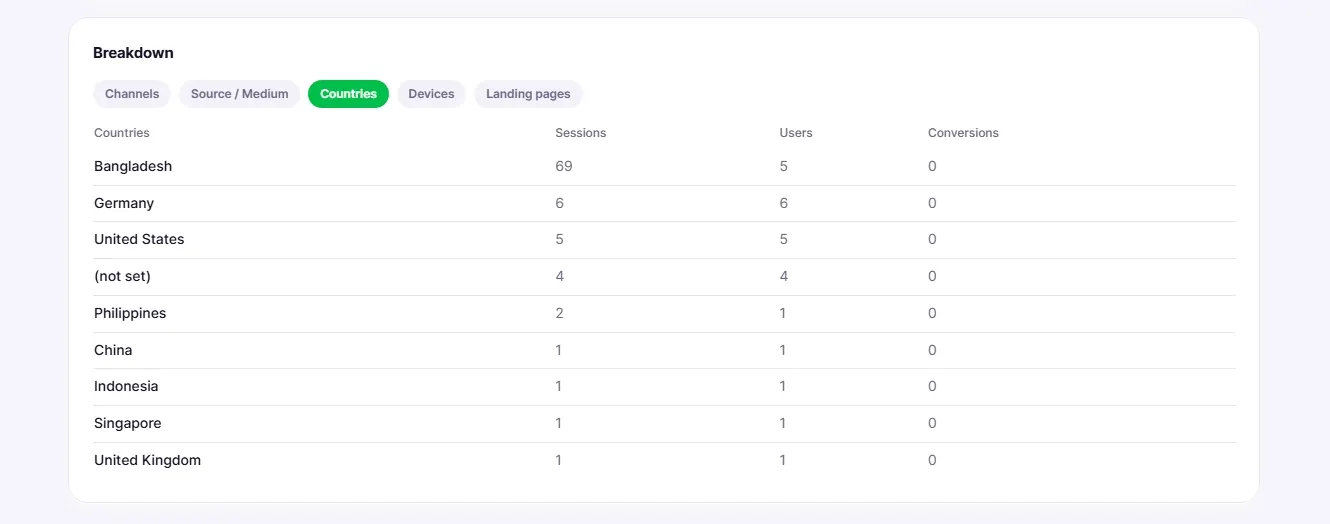
View campaign sends, opens, clicks, and attributed revenue when a supported email source or WordPress plugin reporting is connected. Check plan access before purchase.
 Open full screen ↗
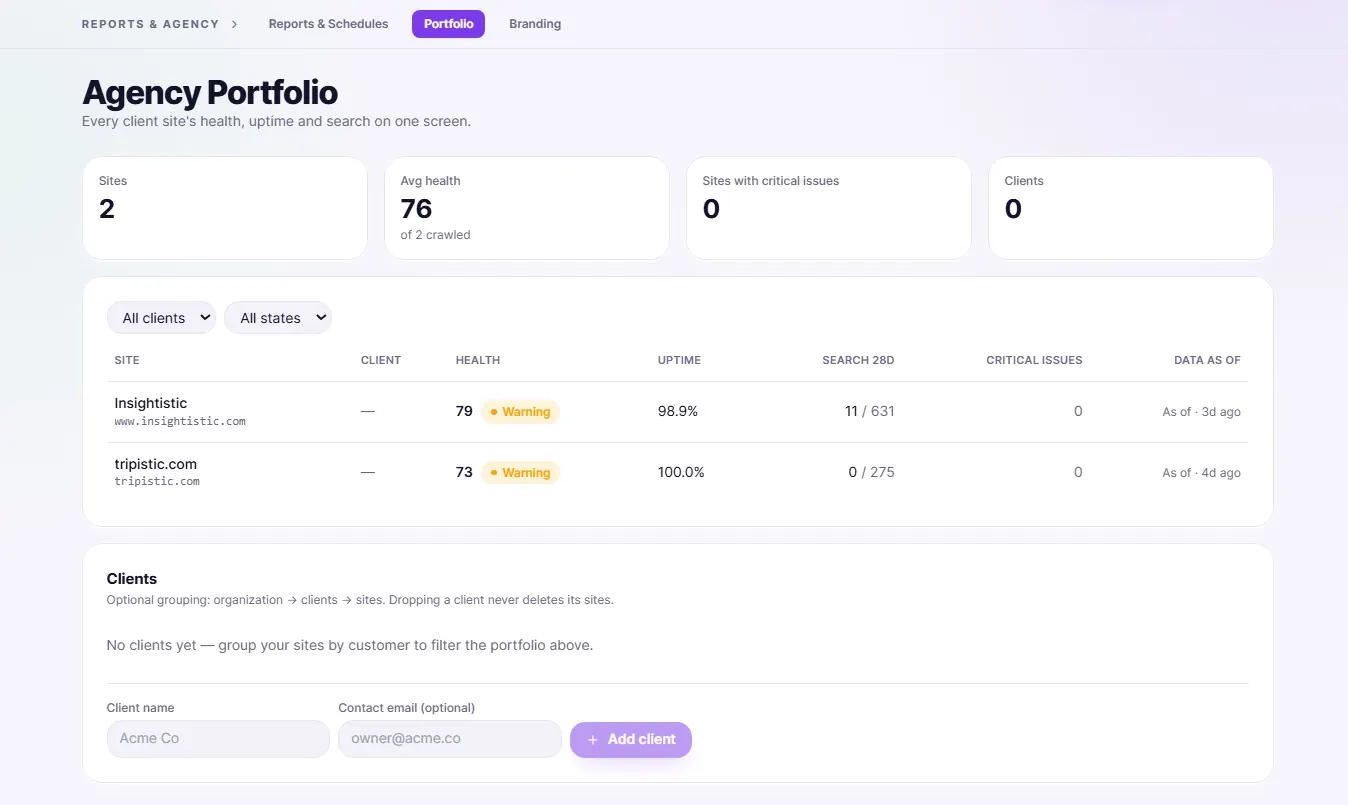
Scan site health and open client projects from one portfolio view. The number of licensed websites depends on your AppSumo tier.
Choose a finding in Site Audit and note its affected page, severity, and crawl context.
Compare mobile and desktop tests, then open the cited measurements and linked opportunities.
Request the strongest supported explanation and ask it to identify uncertainty or missing evidence.
Inspect each cited result yourself. Treat correlation as a clue, not proof of cause.
Check what JOLLEY intends to change and approve only if the scope is right. You can decline it.
Review what was changed, re-run the relevant check, and use an alert or report for follow-up.
This workflow demonstrates approval-based actions and verification; it does not promise a ranking, traffic, citation, or revenue improvement.
The AppSumo listing controls current pricing, feature access, monthly usage and deal terms. This summary covers only the tier differences relevant to this tour; check the listing before purchase.
| Tool or feature | AppSumo availability |
|---|---|
| Agent JOLLEY, Site Audit and PageSpeed | Included across the lifetime tiers; monthly allowances apply. |
| Agent JOLLEY replies per month | Tier 1–5: 300, 500, 800, 1,200 and 2,000 per workspace. Each answered reply beyond the allowance uses 10 Insight Credits. |
| Full cloud WooCommerce analytics | Tiers 2–5. |
| Custom workflow builder | Tiers 2–5. |
| AI competitor insights | Tiers 3–5. |
| White-label reports | Tiers 4–5. |
| Added team members | Tier 1: up to 5 added teammates plus the workspace owner. Tiers 2–5: unlimited added team members. |
Ask JOLLEY to explain a completed Site Audit and the mobile and desktop PageSpeed results. Open its citations, then review the scope and any proposed change before acting.
No. A cited measurement supports the answer, but it does not prove causation by itself. Review the date range, source, data coverage and other possible explanations.
JOLLEY can draft supported changes. It waits for your approval before applying an action and shows a receipt afterward. Review its evidence and the proposed scope before approving.
No. Tier 1 includes up to five added teammates plus the workspace owner. Tiers 2–5 have unlimited added team members. Each successfully added teammate uses 50 Insight Credits once, according to the current AppSumo FAQ. Other features vary by tier.
The captures show the real Insightistic V3 interface. The metrics and statuses are example workspace data and should not be read as customer outcomes or typical results.
Compare the current lifetime tiers and choose the workspace scope that fits your sites and usage.
View current AppSumo pricing →AppSumo controls current price, availability, refund eligibility and checkout terms.